How to Fix “A Disk Read Error Occurred” in Windows and Recover Your Data
-
Written By Somdatta De

- Approved By Nivedita Jha
-
 Updated on February 5, 2026
 -
 Min Reading 7 Min
 - Share


While handling data recovery cases, we often see users losing access to their data due to common hard disk errors—A Disk Read Error. This message typically appears when Windows is unable to read the hard disk. This error occurs while the computer is booting and prevents the operating system from loading and leaving users unable to access their system.
Windows has a built-in tool that is designed to detect, analyze, and fix disk-related issues. When the system cannot read the information on the hard drive, the tool displays A disk read error occurred along with an instruction: press Ctrl+Alt+Del to restart. No matter how many times you press it, the error remains. If that is the case with you, you are at the right place.

What are the Common Causes of the Disk Read Error?
Ideally, the causes of disk read errors vary from one computer to another, but there are some common causes:
- Insufficient RAM
- Boot Sector Damage
- Faulty Cables & Loose Connections
- Damaged Hardware
How to Fix Disk Read Error?
The following fixes are for reducing the complexity of the error. From a quick check to a thorough recovery, reduce the risk of potential data loss.
1. Check & Replace the Cables
Turn off and disconnect the system. Replace wires that connect the drive to the system. If you find a tear in the cable or a faulty port causing a loose connection, replace it. Cut off any unnecessary drives to eliminate the issue.
2. Test the RAM using Windows Memory Diagnostics
- Press Windows + R to open the Run dialog box.
- Type mdsched.exe and press Enter.
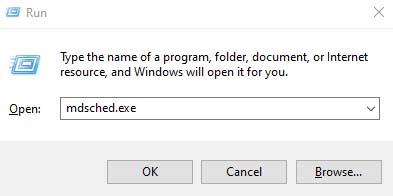
- Choose Restart now and check for problems (recommended).
- Your computer will restart and you will see ‘Windows Memory Diagnostics Tool’ appear on the screen. However, you don’t need to do anything here and let the test run automatically. During this you will see a progress bar and status messages to inform you about the problems. (If detected)
- The system will reboot after the completion of the test.
3. Update or reset the BIOS
Set up BIOS/UEFI (by pressing F2 + Del or F10). Reboot after loading factory settings and save. Check the model of your computer for BIOS updates.
4. Fix MBR & Boot Sector
Use a Windows installation or recovery USB to boot. Enter the following commands in the recovery console:
bootrec /fixmbr
bootrec /fixboot
bootrec /rebuildbcd
This fixes disk read errors in Windows 10/11 and restores important boot metadata.
5. Check for Bad Sectors
To check for damaged sectors and try repairs, run chkdsk /r.
- Use Windows installation USB/DVD to access the repair mode.
- Press Windows + S, type cmd
- From the command prompt, click on Run as Administrator.
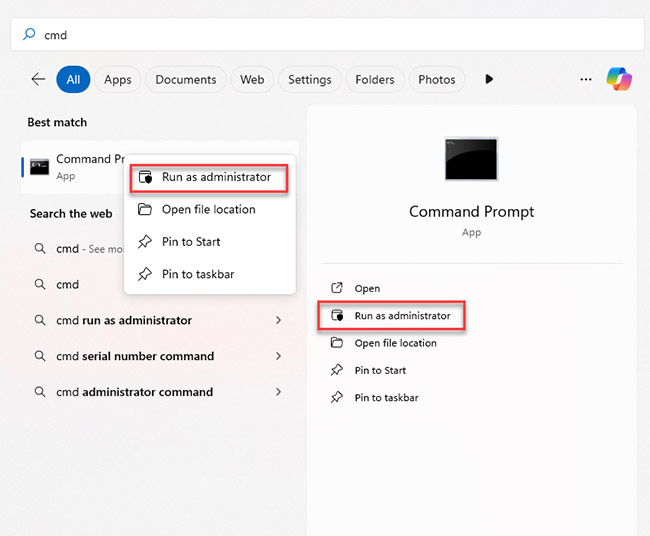
- Type chkdsk C: /f /r /x (replace C: with the drive letter)
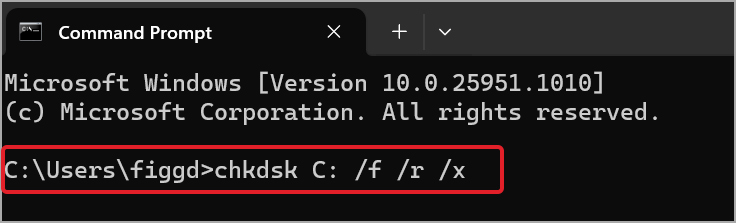
- Press Enter to execute the command.
Note: Don’t risk any more boot attempts at this stage if diagnostics reveal a failing disk or SMART issues. After disconnecting the drive, attach it as a secondary drive to another system.
When to Reach Out to a Professional?
If the above-mentioned fixes fail and your data remains inaccessible, only a professional hard disk data recovery expert like Stellar Data Recovery can help:
🔬 Initial Inspection in a Controlled Environment
Stellar’s data recovery experts analyze the drive in a Class 100 Clean Room Lab. It is a contamination-free enclosure. Such an environment prevents dust from worsening the drive’s condition.
🛠️ Handling the Physical Damage
If the disk read error in Windows 10/11 is caused by physical damage that leads to hardware issues, only our technicians have the expertise to handle that. The physical damage includes PCB failure or faulty read/write heads; we have an extensive inventory from which our experts fetch out the matching part and replace it by using specialized tools.
🧩 Logical Error and Firmware Resolution
If the error stems from logical issues (bad sectors or file system corruption) or firmware issues, we have proprietary tools to access the drive. With the help of the tools, we can bypass the damaged sectors and recover the data.
💽 Data Cloning
We do not recover data directly from the faulty drive to avoid the risk of overwriting. Instead, we do sector-by-sector cloning of the data. Data recovery is performed on the cloned copy, minimizing the risk of data loss.
✅ Data Verification and Delivery
After data recovery, the recovered data is verified by the client for integrity. Once the data is verified, we hand over the data securely.
In short, we ensure peace of mind by recovering crucial data for our clients. We have been in this industry for 32 years. Stellar Data Recovery’s controlled recovery process makes us a premier data recovery service in India.
How to Prevent ‘A Disk Read Error Occurred’ from Happening?
- Regular Backups: Keep backups on a regular basis. Having cloud backups provides peace of mind.
- Monitor SMART Health: Press Windows + R, followed by typing cmd, and hit Enter. If the result shows “OK” that means the drive is healthy. If the result says Pred Fail, that means the drive may fail soon.
- Avoid Sudden Shutdowns: If power outages occur frequently, use a UPS. Boot sectors can be corrupted by abrupt power outages. By Periodic File-system Checks: You can identify emerging problems early by running chkdsk.
Note: Based on the recurring queries we receive from clients, our experts have created a detailed pillar article on common HDD errors to help users understand the different problems they may face and how to deal with them before data loss occurs.
Final Thoughts
This issue can be understood as your disk may be failing, your RAM or cables may be malfunctioning, or that map (MBR/boot sector) may be faulty or missing.
Proceed cautiously; begin with the simplest, least complicated procedures (RAM test, cable check), then proceed to BIOS resets. Treat the drive as unreliable if all else fails; contact Stellar Data Recovery, as our experts clone data from your drive to recover them.
Technical tests and straightforward hardware replacements can frequently resolve issues, but there is always a risk of losing data. Additionally, if the disk is indeed about to fail, you’ll not be able to stop it before it causes irreversible data loss. At Stellar, our data recovery technicians use a disk-cloning tool to clone the drive onto a new one once you’ve copied important files and then boot from the cloned drive.
You may also encounter other common storage and system-related errors that can affect data accessibility. Explore the related articles below to understand these issues and learn how to resolve them safely:
FAQs
1. What causes a disk read error in Windows?
A disk read error occurs due to numerous hardware or software-related issues in Windows. Some common causes include corrupted file systems, damaged boot configuration data or the master boot record (MBR), or faulty hard drive sectors. Power supply issues and loose or defective SATA/IDE connectors might also make it difficult for Windows to read the drive correctly. The issue may occasionally be caused by malware infestations, out-of-date or corrupted disk drivers, or incorrect system shutdowns. In case of physical damage to the hard drive, this issue persists.
2. What to do if a disk read error occurs?
Restarting the computer frequently can exacerbate a disk read error. Start by shutting down the computer and inspecting the power connection. Try booting up again after removing any external devices. To find file system issues or faulty sectors, use CHKDSK or Startup Repair on Windows recovery options or installation media. Additionally, you can use BIOS/UEFI to check the drive’s health. If the issue persists, it can be a sign of severe hardware malfunction or logical corruption. To avoid irreversible data loss in such situations, stop additional attempts and get in touch with Stellar Data Recovery.
3. Is data recovery possible after a disk read error?
Yes, data recovery is possible but only with the help of a professional data recovery service like Stellar Data Recovery. Because, data can typically be retrieved if the recovery experts have the appropriate knowledge and required skills. Avoid reboots and do-it-yourself solutions to increase the chances of successful recovery
4. Is a disk read error a sign of hard drive failure?
Although a disk read error may indicate a hard drive failure, this does not always imply that the drive has failed entirely. Logical problems such as file system corruption, corrupted boot records, or transitory read faults that may be fixed are frequently the cause of the error. On the other hand, persistent or recurring disk read errors frequently point to underlying physical issues, such as defective sectors, malfunctioning read/write heads, or disk surface deterioration. Over time, these symptoms could get worse and ultimately result in complete drive failure. To avoid irreversible data loss, it is advised to cease using the drive and seek professional data recovery service.
About The Author

Somdatta is a professional content writer and analyst focused on the storage technology sector, with expertise in both magnetic and flash storage, as well as cloud computing and virtualization concepts. She translates technical concepts into clear, engaging content to sensitize readers toward a multitude of data loss scenarios and help them gain insights into the nuances of data recovery.