How to Fix “Disk Boot Failure, Insert System Disk and Press Enter” Error
-
Written By Somdatta De

- Approved By Nischal
-
 Updated on February 16, 2026
 -
 Min Reading 6 Min
 - Share


You hit the power button to switch on your system, but Windows doesn’t load. Instead, you’re met with a black screen and a single line of white text: DISK BOOT FAILURE, INSERT SYSTEM DISK AND PRESS ENTER.
Your machine is seemingly dead, and all your important presentations, photos, and videos are trapped. You try restarting, but it doesn’t work.
Disk boot failure errors usually happen right after you install a new drive, leave a USB stick plugged in, or move your PC. Your immediate thought might be the same as a lot of our clients: my hard drive has crashed, and my data is gone.
The reality is usually much less worrying: this error is often just a configuration mix-up. It is annoying, but not catastrophic; your data is most likely safe. Your computer has simply lost its map and cannot find the operating system. However, in cases where data becomes inaccessible, Stellar Data Recovery offers professional hard drive data recovery support to help retrieve critical files safely.
That being said, you still need to be careful. If your drive is not getting detected in the BIOS or making clicking noises, it could point toward physical failure. Trying any amateur fixes in that scenario will wipe your data permanently. So let’s understand this error and see the best ways to fix your Windows boot issues.
Disk Boot Failure, Insert System Disk: Why Does This Error Happen
The BIOS is the first program that wakes up when you turn on your PC. Its only job is to find a device, like a hard drive, SSD, or USB, that holds the operating system (Windows). If it searches everything and finds nothing bootable, it throws the Disk Boot Failure error.
This happens for four specific reasons.
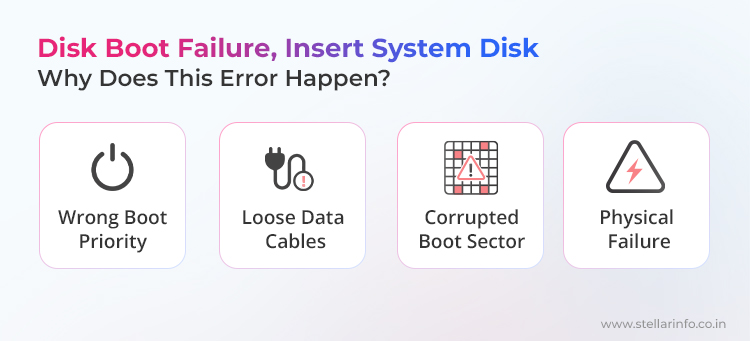
🔌 Wrong Boot Priority
If the boot priority order is not set correctly, the BIOS will check removable media first. If it finds a non-bootable USB drive, it’ll stop there. It won’t even look at your actual system disk.
⚙️ Loose Data Cables
A SATA cable inside the cabinet could have vibrated and come loose. So even if your hard drive is working fine, the motherboard literally cannot see it.
💾 Corrupted Boot Sector
The drive is connected. It spins. But the Master Boot Record (MBR) is damaged. The BIOS finds the drive but cannot read the instructions on how to start Windows.
💀 Physical Failure
This is the worst-case scenario and also the rarest. The drive mechanism (the sensitive moving parts inside your drive) has failed. This could be due to a head crash, a seized spindle motor, or even a burnt PCB. In such cases, the BIOS reports “None” because there is no drive to talk to.
Decoding the Disk Boot Failure Error
Not all boot failures mean the same thing. Let’s look at this table to help you understand.
| Symptom / Message | What It Likely Means | Urgency |
|---|---|---|
| Insert System Disk and Press Enter | BIOS order is wrong or MBR is corrupt. | 🟢 Medium: Fix settings first. |
| No Boot Device Found | The drive connection is loose, or the partition is missing/corrupt. | 🟡 Medium: Check cables first. |
| Hard Disk Error | SMART status failure. Drive health is critical. | 🟠 High: Back up immediately. |
| Clicking / Grinding Noise | Mechanical failure. | 🔴 Critical: Stop! Call a professional. |
| Drive Not in BIOS | PCB failure or dead drive. | 🔴 Critical: Requires in-lab recovery. |
How to Fix Disk Boot Failure, Insert System Disk and Press Enter Error
We need to isolate the exact cause. We can first start with non-invasive checks and move to software repairs.

Method 1: Check for External Interferences
The most common culprit is a forgotten USB drive. If your computer is set to Boot from USB, it tries to load an OS from any connected thumb drive. Since your data stick doesn’t have Windows, the boot fails.
Unplug every USB device. Keep only the keyboard and mouse. Eject any CDs. Check your SD slots. Once the ports are clear, restart the system. If your PC boots into Windows, your hard drive is fine. You will, however, need to change the boot order in the BIOS later.
Method 2: Verify BIOS Detection
If removing external drives didn’t work, you’ll need to know if the computer recognizes your hard drive at all.
For this, you’ll first need to restart the PC. Tap the BIOS setup key immediately (this is usually Del, F2, or F12). Look for a menu called Standard CMOS Features or System Information. Now look through the list of devices. Do you see your hard drive listed by its model number?
- If the drive is listed:
The hardware is detected. Go to the Boot Find Boot Device Priority. Make sure your primary hard disk is the First Boot Device. Save and exit. - If the drive is listed as None or Unknown:
This is bad. The motherboard cannot talk to the drive. It is either a loose cable or a dead drive. Proceed with caution.
Method 3: Inspect Internal Cables
If you’re comfortable opening your PC case, try this. This step rules out any potential connection issues. SATA cables are flimsy. They wiggle loose if the tower gets nudged.
First, power down your system and unplug the power cord. Open the side panel. Unplug both the flat data cable and the power cable from the drive. Also, check for any dust and clean it gently. Now plug everything back in properly. Reseat the cable on the motherboard end, too.
If that doesn’t work, find a spare SATA cable and swap it. Close the case, plug in power, and check the BIOS. If the drive appears, it was just a loose or faulty cable.
Method 4: Repair the Master Boot Record (MBR)
The BIOS sees your drive, and even the boot order is correct. But the disk boot failure error still persists. In such cases, your boot sector is likely corrupted. This is a logical failure, often caused by malware or power cuts.
You need a Windows installation USB. Boot from it. Click Repair your computer > Troubleshoot > Command Prompt.
Type these commands. Press Enter after each one.
- bootrec /fixmbr
This command writes a new Master Boot Record and clears out corruption. - bootrec /fixboot
This writes a new boot sector to the system partition. - bootrec /rebuildbcd
This scans your disk for Windows installations and adds them to the boot data.
Restart your computer. If the MBR was the issue, Windows should load.
When to Stop DIY: Signs of Physical Failure
There is a critical point where troubleshooting becomes dangerous. If the BIOS still says None, or if bootrec fails, stop immediately!
Listen to your drive. Is it making a rhythmic clicking sound? A high-pitched whirring? A grinding noise? If yes, you should understand why a hard drive makes a clicking sound before attempting any further troubleshooting.
Those are the sounds of mechanical failure. The read/write heads might be crashing into the platters. In this state, every second the drive has power, it destroys data. The magnetic coating where your files live is being scraped away. No software utility can fix broken hardware. Restarting a clicking drive turns a recoverable case into permanent data loss.
How Stellar Recovers Your Data
When a hard drive clicks, local repair shops cannot help. They lack the sterile environment needed to open a drive safely. A single dust speck is like a boulder to the read heads.
Stellar Hard Drive Data Recovery services handle these dead-end scenarios. Our in-lab experts in India successfully recover data from thousands of physically failed drives yearly.

🔬 Class 100 Cleanroom Lab
We run ISO-5/Class 100 cleanroom labs where air is regulated. This lets engineers open your drive safely and perform delicate surgeries, like head replacement.
🔧 Extensive Donor Part Inventory
We match your broken drive with an exact donor part, taken from a library of 15,000+ drives. We revive the mechanism temporarily to image the raw data.
🛡️ Firmware Repair
If the firmware is corrupt, the drive becomes busy. We use proprietary hardware to bypass standard BIOS protocols and repair the firmware directly.
🔐 ISO-Certified Security
Your privacy matters. Stellar follows ISO 9001 and ISO 27001 standards, ensuring strict chain-of-custody protocols.
So, if none of the four methods above work, you should immediately contact Stellar Data Recovery.
If your hard drive is showing other errors, explore our related articles to understand the causes and apply the right fixes:
FAQs
1. Can a virus cause Disk Boot Failure error?
Yes. Boot sector viruses overwrite the MBR code. Running bootrec /fixmbr from a trusted recovery USB usually fixes it.
2. Does this error mean my hard drive is dead?
Not necessarily. About 40% of cases are simple configuration issues or logical corruption. Only assume it is dead if the drive clicks or is not detected in BIOS.
3. How much do data recovery services cost?
It varies. Logical recovery is cheaper than recovery from physically damaged drives, which requires a Class 100 cleanroom. Stellar offers a free consultation to assess the drive and give a fixed quote.
4. Can I use recovery software if the BIOS doesn’t see the drive?
No. Recovery software needs the computer to see the drive. If BIOS reports “None,” you need hardware-level recovery services first.
About The Author

Somdatta is a professional content writer and analyst focused on the storage technology sector, with expertise in both magnetic and flash storage, as well as cloud computing and virtualization concepts. She translates technical concepts into clear, engaging content to sensitize readers toward a multitude of data loss scenarios and help them gain insights into the nuances of data recovery.