
How to Recover Deleted Screen Recordings on Android & iPhone (Even Without Backup)
-
 Written By Somdatta De
- Approved By Nischal
-
 Updated on March 3, 2026
 - Min Reading 8 Min
- Share

If you’re reading this, you’ve likely just lost a screen recording that you can’t easily recreate.
Our data recovery team gets almost daily enquiries from people who have lost screen recordings of a crucial tutorial, an important video call, or a once-in-a-lifetime game highlight.
We understand that losing such high-utility content can be deeply frustrating.
We also advise everyone that in attempts to recover data, every second counts.
That’s why we have compiled all the methods of recovering your deleted screenshots and screen recordings from your Android phone or iPhone.
For starters, it helps to know that your path to recover deleted screen recording files will depend entirely on:
- How the screen recording was deleted: Was it simply removed from the gallery, or has it been erased from all backup locations?
- Where your recordings were stored: Did your device save videos to internal memory, an SD card, or automatically back them up to Google Photos, iCloud, or Google Drive?
- What kind of phone you’re using: The process to recover deleted videos differs between Android and iPhone.
Our goal in this guide is to walk you, step-by-step, through every method worth trying.
How to Recover Deleted Screen Recordings From An Android Phone
We recommend you try these steps in order.
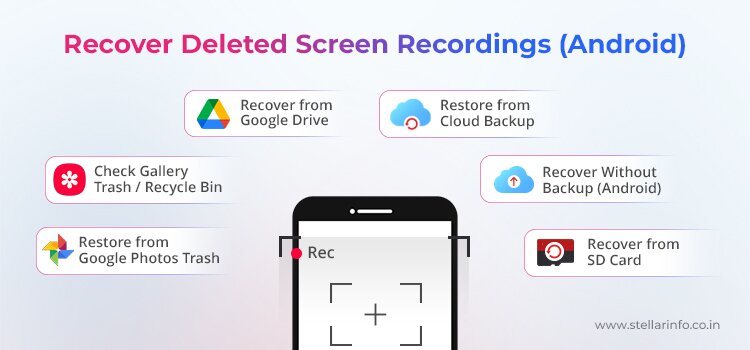
Method 1: Restore from Google Photos Trash
If you have set up your phone settings to back up photos and videos to Google Photos, then most likely your deleted recording is still easily retrievable.
Here’s how to check:
- Open Google Photos on your Android phone. Make sure you’re signed in with the account you used for backup.
- At the bottom, tap Library, then Trash.
- You’ll see all photos and videos deleted in the last 60 days. Touch and hold the screen recording you want to restore.
- Tap Restore at the bottom. Your video will reappear in your gallery, in Google Photos, and in any albums it was originally in.
Please remember that Google Photos Trash holds deleted files for 60 days before removing them permanently. If you don’t find the recording here, this means that either it was never backed up, it has already been emptied from trash, or was originally deleted more than 60 days ago.
Method 2: Check Your Phone’s Gallery Trash or Recycle Bin
Like many Android users, you may not have set up auto-backup to Google Photos. In this case, the right place to look into is the “trash” or “recently deleted” section in their built-in gallery app provided in your phone.
Here’s how to check this on Android phones from popular brands:
- Samsung: Open the Gallery app, tap the menu (☰ or three dots), then choose Recycle Bin. Select your video and tap Restore.
- Xiaomi: In the Gallery, find Trash or Deleted Items (which may require a Mi Account). Restore from here.
- OnePlus: Open Gallery, swipe to Collections, then open Recently Deleted. Tap the recording and then tap Recover.
Deleted files stay for about 30 days in most gallery trash folders. After that, or if you empty the bin, the files are permanently erased.
Method 3: Recover Screen Recordings from Google Drive
If you manually uploaded your recording to Google Drive, or if you have a Google One backup that includes videos, you can easily recover them from the cloud:
- Open Google Drive on your device or computer.
- Search for your file in My Drive or any relevant folders.
- If the file was deleted from Drive, open the Trash section from the menu. Files in Google Drive Trash are stored for 30 days.
- If you find the recording, select it and tap Restore or Download.
Note: Google Drive only backs up files if you manually save them or use an app that does.
Method 4: Restore from Local or Manufacturer Cloud Backup
Some Android phones let you back up app data, videos, and more, either to the cloud or to an SD card or PC. If you use Samsung Smart Switch, Xiaomi’s Mi Cloud, or a similar tool, you might be able to restore your recording.
Here’s how it works for Samsung phones:
A. Restore from Samsung Cloud/Samsung Account
If your Samsung phone was set to back up data to Samsung Cloud:
- Open Settings on your Samsung phone.
- Go to Accounts and backup.
- Under Samsung Cloud or Samsung account, tap Restore data.
- Choose the backup made before you lost your screen recording.
- Select the types of data to restore—be sure to include Gallery (where screen recordings are usually stored), and tap Restore.
- Wait for the process to finish, keeping your phone on Wi-Fi if prompted.
B. Restore from Samsung Local/Smart Switch Backup
If you backed up your data locally (to your phone, SD card, or PC) using Smart Switch:
- For local or SD card backup:
- Open Settings > Accounts and backup > Restore data.
- Choose External storage or SD card (wherever your backup is saved).
- Select the relevant backup and restore Gallery or Apps as needed.
- For PC/Mac backup via Smart Switch:
- Connect your phone to the computer.
- Open the Smart Switch application.
- Click Restore and select the backup you want to use.
- Complete the restore process, and then check your Gallery for the recovered screen recording.
If restoring from backup is not possible or the selected backup does not contain your recording, further attempts using the device may reduce recovery chances due to data overwrite. In such cases, an advanced Mobile Data Recovery Service can perform deeper storage-level scanning to identify recoverable video fragments that are no longer visible through standard backup methods.
Method 5: Recover Deleted Screen Recordings Without Backup (Stellar Data Recovery for Android)
If your recording isn’t in any trash or backup, your best option is to use a data recovery app. This is where Stellar’s Android data recovery Software comes in. Our software specializes in Android screen recording recovery even if you have no backup.
Here’s how you do it:
- Download and install Stellar Data Recovery for Android on your PC.
- Connect your Android device with a USB cable.
- On your phone, enable Developer options (if not already):
Go to Settings → About phone → Build number, tap it 7 times until you see “You are now a developer”and enable USB debugging (you’ll find this in Developer Options under Settings).
- Connect the Android phone to the PC with a reliable USB cable and allow any “Allow USB debugging / Allow access to data” prompts on the phone.
- Open the Stellar tool and select the types of files you want to recover (choose Videos).
- Start a Scan; if offered, begin with Quick Scan. If the recording is not found, run a Deep Scan for a more thorough search.
- Preview the recoverable files that show up in the scan’s results.
- When you see your screen recording, select it and click Recover to save it to your computer.
- Transfer the file back to your phone if needed.
Why use Stellar Data Recovery for Android?
- You can recover deleted videos without backup or root.
- You can preview files before recovery so you know you’re saving the right one.
- It works even if you’ve emptied the phone’s trash or deleted files permanently.
Method 6: Recover Screen Recordings from an SD Card with Stellar Photo Recovery
If your phone or recording app saved the videos to an SD card, you have a good chance at recovery, even if you deleted the file or formatted the card.
- Remove the SD card and connect it to your computer using a card reader.
- Install Stellar Photo Recovery (for Windows or Mac).
- Run a scan of the SD card for deleted videos.
- You’ll see a list of recoverable files, including screen recordings in common formats like MP4.
- Select and recover your video, then transfer it back to your phone.
Stellar Photo Recovery Software is trusted worldwide to recover lost photos and videos from all types of media including SD cards used in Android phones.
How to Recover Deleted Screen Recordings From iPhones
On iPhones, the process of recovering your deleted screenshots and screen recordings is a little different.

Method 1: Restore from Recently Deleted Album
When you delete a screen recording in the Photos app, it goes straight to the Recently Deleted album. Here’s what to do to recover a deleted recording from here:
- Open Photos > Albums > Scroll down to the Utilities section and tap Recently Deleted.
- Unlock the album with Face ID, Touch ID, or your passcode.
- Find your screen recording (look for the video length in the thumbnail).
- Tap the video → tap Recover → confirm Recover Video.
Once you are done, your video returns to its original album and date.
Please remember that the Recently Deleted album keeps files for 30 days before they’re removed forever.
Method 2: Recover Screen Recordings from iCloud Photos
If you have iCloud Photos enabled, you can recover your deleted videos using the ‘Recently Deleted’ option in iCloud.
- Go to iCloud and sign in.
- Open Photos > Recently Deleted.
- Find and select your video, then click Recover.
Method 3: Restore Using iCloud Backup
If you made an iCloud Backup before deleting your recording, you can restore your phone to that backup, though in the process you may lost some data you saved after the last backup was taken.
- Check backup date: Go to Settings → [your name] → iCloud → iCloud Backup.
- If the date works, back up your current data first (so that you don’t lose new files).
- Erase your iPhone: Settings > General > Transfer or Reset iPhone > Erase All Content and Settings.
- Restore from iCloud Backup during setup, using the backup that should contain your recording.
Method 4: Restore from iTunes or Finder Backup
If you backed up your iPhone to a computer, follow these steps:
- Open iTunes (Windows/older Mac) or Finder (newer Mac) and connect your iPhone.
- Connect your iPhone with a USB cable and tap Trust This Computer on the phone if prompted.
If you are using Finder:
- Open Finder and select your iPhone under Locations.
In the General tab, under Backups, click Restore Backup. - Choose the backup.
- Click Restore.
If you are using iTunes:
- Open iTunes.
- Connect your iPhone and click the device icon when it appears.
- In the Summary / General section, click Restore Backup.
- Select the desired Backup.
- Click Restore.
Method 5: Recover Deleted Screen Recordings Without Backup (Stellar Data Recovery for iPhone)
If all other methods have failed, you may still be able to recover deleted screen recording files using Stellar iPhone recovery software, even if you emptied the Recently Deleted album.
How it works:
- Install Stellar Data Recovery for iPhone on your computer.
- Connect your iPhone and select Recovery Mode (from iPhone, from iTunes backup, or from iCloud backup).
- On Stellar’s main screen, choose Recover from iPhone.
- Select your iPhone from the device list and click Scan.
- Scan your device or backup for deleted videos.
- Preview and recover your screen recording to your computer, then transfer it back to your phone.
Why Stellar?
- Extract videos directly from device or backup without full restore.
- Recover even after trash is emptied.
- Preview files before recovery.
Stellar’s Photo and Video recovery tools are built for these tough cases, offering you the ability to preview and recover deleted screen recording files—even after trash is emptied or no backup exists. Always use the free preview function to confirm your file is recoverable before proceeding.
If none of these methods work, the data may still be recoverable at the storage level.
Stellar Data Recovery provides advanced solutions through its specialized Mobile Data Recovery Service, designed to recover deleted screen recordings, videos, and app data from Android and iPhone devices — even after permanent deletion, backup overwrite, or emptied trash folders.
For the best chances of recovery, stop using the device immediately to minimize overwrite risk and seek professional evaluation before attempting further fixes.
If you need case-specific guidance, you can reach out to our support team for a detailed assessment.
Data loss doesn’t stop at screen recordings. If you’ve lost photos or videos from other devices, these guides can help you take the next step toward recovery:
About The Author
Somdatta is a professional content writer and analyst focused on the storage technology sector, with expertise in both magnetic and flash storage, as well as cloud computing and virtualization concepts. She translates technical concepts into clear, engaging content to sensitize readers toward a multitude of data loss scenarios and help them gain insights into the nuances of data recovery.


