Internal Hard Drive Not Detected—Causes, Fixes, and Data Recovery Options
-
Written By Urvika Tuteja

- Approved By Nivedita Jha
-
 Updated on December 29, 2025
 -
 Min Reading 6 Min
 - Share


Like any other day, you turn on your laptop or desktop, only to find the screen frozen for what seems like an eternity rather than booting into Windows. And if the system does boot up, a pop-up like this appears: Windows detected a hard disk problem.
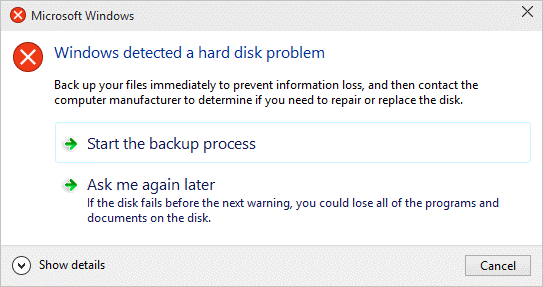
Panic sets in, and understandably so. You might think, “Did I just lose all my files?” From important office projects to personal photos and videos, everything stored on that internal drive suddenly seems lost.
Countless users face this situation every day. Just like an external hard drive not detected or a USB device not recognized error, an internal hard drive not detected issue can point toward impending hard drive failure. However, it doesn’t necessarily mean that your data is gone forever. It indicates that something is wrong at either a file system or hardware level.
Let’s explore what this issue means, its common causes and simple DIY fixes, and when to contact professional data recovery services.
Causes of Internal Hard Drive Not Detected
Understanding the causes can help you isolate the issue and determine the ideal solution and whether you are at risk of data loss or not. Here are the most typical reasons why an internal hard disk is not detected by Windows.
🔌Broken or Loose Connections
Internal connections can come loose if there is constant vibration or an unexpected impact. Also, cables can wear out over time, which can stop communication between the drive and the system.
📁 Broken Boot Records or System Files
Windows may not be able to find the drive if the system files are damaged or the Master Boot Record (MBR) is corrupted. This happens a lot following sudden shutdowns and malware infections.
🗄️ Problems With Drivers or Firmware
If the drivers for the internal HDD/SSD are missing or out of date, the system will not be able to communicate with the drive. Outdated firmware can also cause problems with drive initialization.
⚡ Power Supply Issues
If the power supply unit isn’t working correctly, it might not be able to give the hard drive adequate power to start up, especially on older desktop computers.
💽 Bad Sectors
The disk may be unreadable if there are a lot of bad sectors or if the system area is damaged. Data can be recovered from logical bad sectors using powerful software like Stellar Data Recovery for Windows. However, if the HDD has physical bad sectors, it will need in-lab recovery in an ISO-5/Class 100 Cleanroom.
🛠️ Hardware-Level Damage
The most serious cause is physical damage that includes head crashes, platter damage, or spindle motor seizures. DIY methods or recovery software cannot resolve these failures; recovery requires controlled cleanroom procedures performed by professional hard drive data recovery specialists, such as Stellar Hard Drive Data Recovery.
How to Fix the Internal Hard Drive Not Detected Issue
Follow these simple tests if your internal hard drive not detected issue appears before reaching out for expert assistance.
1. Check the Power and Cable Connections
One of the most typical reasons why drives aren’t detected is because the SATA cable and connectors are loose or broken. Make sure the connectors are not frayed and they are fixed firmly.

2. Change the SATA Cable
A malfunctioning SATA port or cable might impede communication between the motherboard and the drive. To rule this out, replace the cable or try a different port (by attaching the drive to a different system).
3. Check BIOS Settings
To get into BIOS/UEFI, restart your computer and press the boot menu key (F2, F10, Del, or Esc, depending on the laptop/PC manufacturer). Look for your internal hard drive in the list of attached drives. If it’s turned off, turn it back on yourself.
4. Check Hardware Diagnostics
Most computers have built-in diagnostic tools that can be used when the computer starts up. To run hardware diagnostics, you need to go to the boot menu. After that, select “Hard Drive Test” or “Diagnostic Test” and then keep on following the on-screen prompts.
If the drive is still not detected after these procedures, the problem is likely much more serious and needs expert, in-depth investigation.
When to Stop DIY and Seek Professional Data Recovery Services
A hard drive not getting recognized by the system can have serious ramifications for your saved files. So, it’s crucial that you know when to quit trying out DIY methods or using data recovery software.
If your drive produces strange noises, won’t spin, or if you’ve done all the basic checks and the internal drive still isn’t showing up, it probably has physical damage that only professionals can fix safely.
If you open a hard drive outside of a controlled environment, dust particles can get inside and harm the platters permanently. At this point, it’s recommended to turn off your computer and seek the advice of authorized data recovery experts like Stellar Data Recovery.
Stellar Data Recovery has Class 100 Cleanroom facilities that keep dust out so they can open and fix broken drives.
This is how Stellar’s data recovery engineers and technicians deal with these kinds of situations.
- Diagnosis and Evaluation: We thoroughly check the drive to see if the problem is with the electronics, the software, or the mechanics.
- Repairing at the Component Level: In a cleanroom, professionals replace malfunctioning parts like the spindle motor or read/write head assembly.
- Cloning and Data Recovery: After the drive is temporarily stabilized, powerful imaging methods are used to clone the data onto a healthy medium. Optimized recovery protocols are carried out on the clone, and data is recovered.
- Verification and Delivery: Before being safely delivered, the integrity of the recovered data is verified by the client.
In Conclusion
When your computer doesn’t recognize your internal hard drive, it can be a minor hindrance at best, or at worst, it may result in permanent data loss. So, after checking the basics, if you discover that the issue persists, don’t use random DIY recovery software or go to local repair shops.
The best option is to get in touch with an ISO-certified data recovery service that can safely inspect the drive and get your files back without putting it at further risk.
With 30+ years as the industry leader and banking on state-of-the-art R&D, cutting-edge proprietary tools & technology, and ISO-certified Class 100 cleanroom labs, Stellar Data Recovery offers you the best chances of getting back your cherished photos and videos or work-related files. Contact Stellar today to make sure your data is in safe hands.
Our data recovery experts have found that many users encounter HDD errors on their laptops long before an internal hard drive not detected issue occurs. To help you understand these warning signs, we’ve explained the most common hard drive errors in the articles below:
FAQs
1. Why is my laptop not recognizing the internal hard drive?
There could be multiple reasons due to which your laptop is not recognizing the internal hard drive, including loose cables, incorrect BIOS settings, a failed controller, lost partitions, a corrupted file system, extensive bad sectors, and physical damage.
2. What to do if my internal hard drive is not detected?
Start by identifying whether the problem is hardware-related or software-related. Restart your computer and enter BIOS/UEFI. If it shows up there but not in the File Explorer, try resetting BIOS settings.
A faulty connection, a power problem, or physical damage may be the cause if the drive is not identified in the BIOS at all. Steer clear of restarting repeatedly since this could exacerbate the issue. To avoid data loss, shut down the system and seek advice from a trusted data recovery service like Stellar.
3. How to recover data from an internal hard drive that is not detected?
Check to see if an internal hard drive is showing up in BIOS or UEFI. Data recovery will be simpler if it is visible on BIOS but not in File Explorer. If it’s not appearing in BIOS, it may indicate a hardware-level problem, such as a defective PCB, broken read/write heads, or physical bad sectors. Repetitive restart attempts and DIY fixes should be avoided, as they may worsen the damage. The safest option to retrieve data without running the danger of irreversible loss is to get in touch with a professional service provider like Stellar Data Recovery.
About The Author

Urvika Tuteja is an SEO Executive at Stellar® with a good understanding of online marketing. She is known for her quick and enthusiastic learning abilities. Urvika contributes her skills to managing operational activities and driving the growth of organic traffic.