Common Windows Errors: Diagnose, Fix and Recover Data
-
Written By Urvika Tuteja

- Approved By Nivedita Jha
-
 Published on Feb 18, 2026
 -
 Min Reading 20 Min
 - Share


If your Windows 11 PC stuck in a boot loop, flashing a Blue Screen of Death (BSOD), or refusing to detect your hard drive at all, don’t worry, you’re not alone. Confusing Windows system errors like the 0xc000000f boot error and the dreaded Disk Boot Failure can pop up when you least expect them and lock you out of your critical documents, photos, and project files.
While some of these glitches are simple software conflicts you can try and fix with Startup Repair or CHKDSK, other Windows error codes signal imminent hardware failure.
In this definitive guide, we’ve explored the 30 most common Windows 10 and Windows 11 error codes. So strap in as we explain exactly why your system is crashing, how you can distinguish between a simple glitch and a mechanical disaster, and how to recover your data when Windows refuses to load.
⚠️ Critical Warning: If your drive is making clicking sounds or is not detected in BIOS, stop immediately. These are physical failures. Running any software fixes on a physically damaged drive will destroy your data. Stop all DIY attempts and contact Stellar data recovery experts immediately.
Before You Fix Anything
Stop and assess your situation. Write down your exact error code, note what you were doing when it appeared, and check if your drive still shows up in BIOS.
Here’s a quick checklist:
- Capture the full error code and message
- Note if there were any recent updates, new hardware, or power interruptions
- Verify if your drive appears in BIOS or Disk Management
- Check if you can reach Windows desktop or Recovery Environment
- Confirm BitLocker status (if your drive is encrypted)
If your drive makes clicking sounds, shows SMART warnings, or is not detected at all, skip all DIY fixes and contact Stellar’s data recovery service immediately. Further attempts can permanently damage your media.
Find Your Error Fast
We have grouped these errors by symptom so you can find your fix path immediately. Use this table to match what you see on your screen with the likely culprit and the section where you will find the detailed solution.
| What you see | Likely area | First safe action | Section |
|---|---|---|---|
| PC will not boot, error code on black screen | Boot and BCD | Use Windows Recovery options, run Startup Repair | Chapter 1: Boot & BCD Errors |
| Blue screen loop, Automatic Repair, SrtTrail.txt | Startup repair loop | Boot to Recovery, run repair commands | Chapter 2: Blue Screens & Repair Loops |
| Windows Update fails with a code | Update services, component store | Reset update components, repair system files | Chapter 3: Disk I/O & Physical Hardware Warnings |
| Copy fails, file is unreadable, drive disconnects | Disk I/O, file system, sectors | Check cables, run disk checks, test drive health | Chapter 4: Windows Update & System Services |
| White screen, apps crash, media fails | Display drivers, app components, codecs | Safe Mode, driver rollback, repair app | Chapter 5: File, App & Media Corruption |
Chapter 1: Boot and BCD Errors
1. Error Code 0xc000000f
The Error Message
The boot selection failed because a required device is inaccessible. Error code: 0xc000000f. An error occurred while attempting to read the boot configuration data.
Why It Appears
Your system cannot locate the Boot Configuration Data BCD file, which tells Windows where the OS lives. BCD corruption usually happens after abrupt shutdowns, failed updates, or disk errors. Sometimes the boot partition itself gets damaged, or your drive’s controller firmware fails to load its microcode into memory correctly during POST.
What Stellar Can Do
Stellar’s in-lab experts perform sector-by-sector imaging followed by file recovery when Windows refuses to boot. Our engineers retrieve data from disks even if your PC no longer recognizes them. We handle boot configuration corruption by bypassing the OS entirely and working at the firmware and partition level in our secure labs.
If you want to know more about this error and how to resolve it, check out our detailed blog on “Fix Error Code 0xc000000f in Windows 10/11“
2. Error Code 0xc0000185
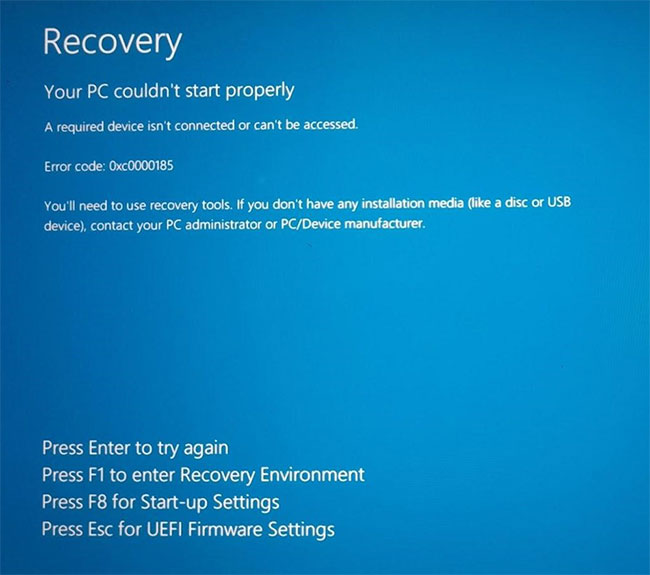
The Error Message
Your PC could not start properly. A required device is not connected or cannot be accessed. Error code: 0xc0000185.
Why It Appears
Windows detects corruption in critical boot files or loses communication with your storage device during startup. Damaged BCD entries are the usual suspects. Failing SATA cables can cause intermittent connectivity, which can corrupt boot data. Degraded sectors in the boot partition prevent the system from loading essential files. You might also see this after cloning a disk if the boot order was not reconfigured properly.
What Stellar Can Do
Our recovery service bypasses OS-level boot requirements. Lab specialists access your disk directly and create hardware images, recovering files even when the OS cannot load. For physical crashes or firmware corruption, our lab experts perform platter-level recovery. We rebuild file structures without relying on Windows boot processes, so your data stays intact regardless of boot configuration state.
To explore this error in detail and learn how to fix it, read our comprehensive blog on “How to Fix Error Code 0xc0000185“
3. Error Code 0xc0000001
The Error Message
Your PC couldn’t start properly. There’s an error that needs your attention. Error code: 0xc0000001.
Why It Appears
This is a broad boot failure message that points to corrupted system files, driver conflicts, or hardware instability. Windows throws this when it cannot initialize core components needed to start the OS. It often follows incomplete driver installations, interrupted Windows updates, or failing RAM modules that corrupt data during boot.
What Stellar Can Do
Boot failures like this typically require immediate in-lab intervention. Stellar’s technicians isolate corrupted components by imaging your drive and extracting user data before attempting OS-level repairs. If the issue stems from hardware instability, our diagnostic tools identify the failing component, and we recover your files using purpose-built imaging hardware that does not rely on your OS or file system.
For a deeper understanding of this issue and its solution, check out our blog on “What is Error Code 0xc0000001, What are the solutions to fix the error“
4. Boot Device Not Found / 3F0 Error
The Error Message
Boot Device Not Found. Please install an operating system on your hard disk. Hard Disk 3F0.
Why It Appears
Your BIOS cannot detect a bootable drive. Boot order misconfiguration is the simplest cause. Physical disconnection happens when SATA cables work loose from vibration or poor seating. Boot sector MBR corruption prevents the BIOS from recognizing the drive as bootable even when detected. HP systems throw the 3F0 code specifically when drives fail POST Power-On Self-Test, which often indicates controller board failure or degraded firmware.
What Stellar Can Do
When your system fails to boot and the drive goes unrecognised, serious corruption in the boot partition or hardware failure is likely. Stellar’s in-lab specialists repair or reconstruct boot structures, then extract data directly from failing drives. Stellar’s in-lab specialists clone the disk and work on the image to avoid further stress on the original media. We then reconstruct the boot structure and recover the data.
Want to know more about this error and the steps to resolve it? Visit our detailed guide on “How to Fix Boot Device Not Found or Hard Disk 3F0 Error“
5. Disk Boot Failure / Insert System Disk
The Error Message
Disk boot failure. Insert system disk and press enter. Non-system disk or disk error. Replace and press any key when ready.
Why It Appears
Your computer cannot locate a bootable drive. The Master Boot Record MBR or boot sector holds critical bootstrap code, and when corrupted, the BIOS cannot hand off control to the operating system. Failed Windows updates sometimes overwrite MBR data incorrectly. Virus infections specifically target boot sectors. Worst case, your drive stops spinning or responding to BIOS queries entirely, which causes this error.
What Stellar Can Do
When your system fails to boot and the drive goes unrecognized, serious corruption in the boot partition or hardware failure is likely. Stellar’s in-lab specialists repair or reconstruct boot structures, then extract data directly from failing drives. Stellar’s in-lab specialists clone the disk and work on the image to avoid further stress on the original media. We then reconstruct the boot structure and recover the data.
To learn what causes this error and how to fix it, refer to our complete blog on “How to Fix Disk Boot Failure, Insert System Disk and Press Enter Error“
6. Dell Hard Drive Not Installed
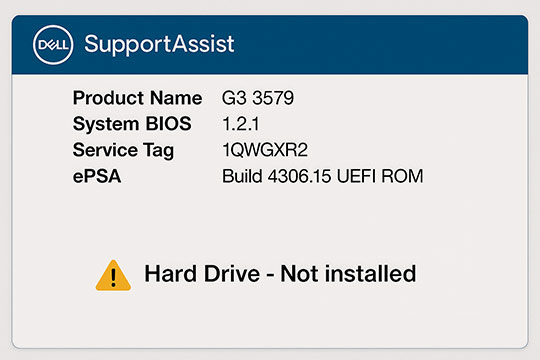
The Error Message
Hard Drive – Not Installed. Internal Hard Disk Drive not found.
Why It Appears
This specific error appears on Dell systems when the BIOS fails to detect the primary hard drive during startup. It is often caused by loose cable connections, BIOS misconfiguration, or physical drive failure. If the drive has spun down or the controller board has failed, the system reports it as “Not Installed”.
What Stellar Can Do
When your Dell system cannot find the drive, Stellar’s lab experts bypass the BIOS detection entirely. We remove the drive and interface directly with its components using specialized tools. If the drive controller is dead, we replace it with a donor board and reprogram the firmware to regain access to your data.
You can find more details and solutions for this error in our blog on “Troubleshooting Dell Hard Drive Not Installed Error“
7. Internal Hard Drive Not Detected
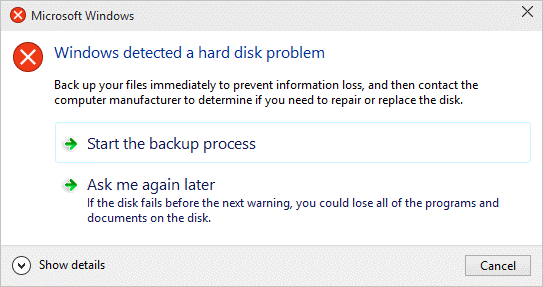
The Error Message
No bootable device found. Internal hard disk drive not detected.
Why It Appears
Your system cannot see the internal drive due to physical disconnection, power failure, or firmware corruption. SATA or NVMe controller issues on the motherboard can also cause this. If the drive makes clicking or buzzing sounds, mechanical failure is preventing detection.
What Stellar Can Do
Stellar’s in-lab service handles drives that are completely invisible to the system. We diagnose whether the issue is electronic or mechanical. For mechanical failures, we open the drive in a secure lab to repair head assemblies or motor spindles, allowing us to image the data to a healthy drive.
To get complete insights into this error and how to solve it, read our article on “How To Fix Internal Hard Drive Not Detected“
8. Primary/Master Hard Disk Error
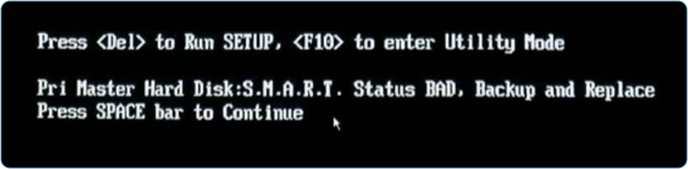
The Error Message
Primary Master Hard Disk Error. 3rd Master Hard Disk Error.
Why It Appears
This appears immediately during POST before Windows begins loading. Your BIOS cannot initialize the drive. This is hardware-level trouble. The BIOS tries communicating with your drive and gets no response. Degraded drive controller boards, physical wear like head crashes, or corrupted firmware prevent proper initialization.
What Stellar Can Do
Even when BIOS cannot detect your hard drive, Stellar can. Our recovery lab uses specialized hardware tools interfacing directly with drive internals. Faulty PCBs get replaced with donor boards. Corrupted firmware is manually through microcoding. When we suspect internal mechanical failure, we shift to a secure lab environment to open drives safely.
For a full explanation and recovery steps, see our in-depth blog on “How to Fix Primary Master Hard Disk Error in BIOS/Boot“
Chapter 2: Blue Screens and Repair Loops
9. SrtTrail.txt BSOD Error
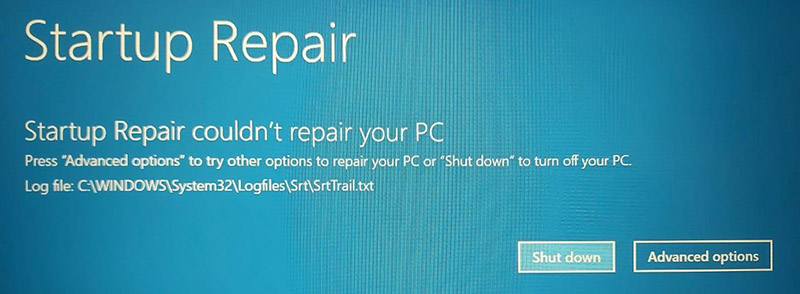
The Error Message
Automatic Repair could not repair your PC. Log file: C:\Windows\System32\Logfiles\Srt\SrtTrail.txt.
Why It Appears
Windows enters a repair loop when it detects boot failure, but lacks the tools to fix it. The SrtTrail.txt log typically points to corrupt registry hives that prevent user profile loading. Damaged system files in the Windows directory block critical services from starting. Problematic drivers loaded during boot trigger kernel panics that restart the repair cycle. This loop commonly follows failed updates that left system files in inconsistent states.
What Stellar Can Do
When Automatic Repair keeps failing, Stellar’s in-lab recovery team clones your drive sector-by-sector. We extract data without stressing your original media further. Our engineers bypass the boot process and access files at the partition level, pulling out documents, photos, and application data even when the OS is permanently corrupted. For drives showing hardware instability, we shift recovery to a controlled lab environment.
To understand this error better and fix it effectively, head to our detailed article on “Fix SrtTrail.txt BSOD Error on Windows 10/11“
10. White Screen of Death (WSOD)

The Error Message
A blank white screen appears during or after Windows boot, with or without a cursor.
Why It Appears
Windows loads but cannot initialize the display shell or graphics stack. Corrupted display drivers prevent proper video output. Damaged Explorer.exe process fails to render the desktop environment. Windows Update conflicts break compatibility between graphics drivers and OS components.
What Stellar Can Do
When Windows refuses to display properly, Stellar’s recovery team accesses drives through Safe Mode, bypassing corrupted display components. Lab specialists extract data and recover files even when the OS cannot render a usable interface.
Learn more about this error and how to deal with it in our comprehensive post on “How to Fix Blank White Screen of Death on Windows 11/10“
11. Blue Screen 1033 Error
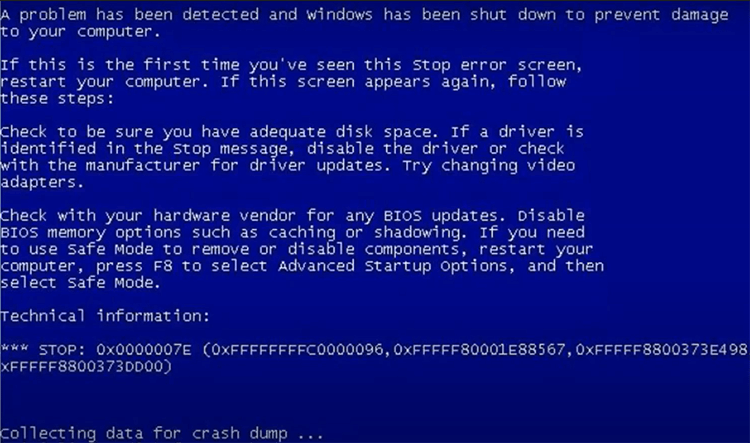
The Error Message
STOP: 0x00000409 (1033). Your PC ran into a problem and needs to restart.
Why It Appears
This blue screen error typically appears when there is a critical system process failure or driver conflict. Error 1033 often points to corrupted system files, incompatible drivers, or failing RAM that corrupts data during operation. It can also indicate registry corruption or conflicts between security software and Windows kernel components.
What Stellar Can Do
BSOD errors require careful diagnosis because they can stem from both software and hardware issues. Stellar’s in-lab recovery team identifies whether there are any failing components during inspection, creates a forensic image of your drive, and recovers your data.
Full guide here: What is Blue Screen 1033 Error
12. Stop Code: Internal Power Error
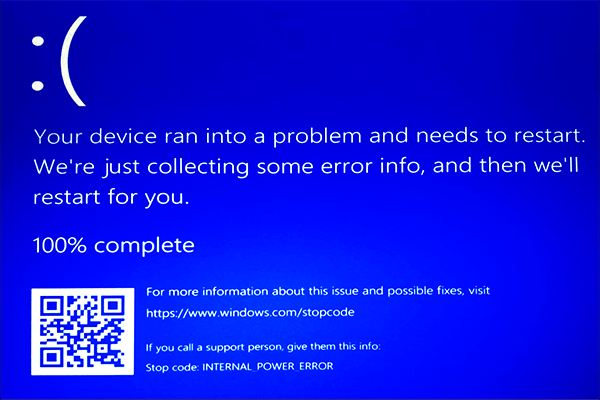
The Error Message
Your PC ran into a problem and needs to restart. INTERNAL_POWER_ERROR.
Why It Appears
Windows detects power state transition failures. This happens during sleep, hibernation, or shutdown operations when power management drivers cannot transition hardware components properly. Outdated chipset drivers lack proper power management code. Failing power supply units provide unstable voltage during transitions.
What Stellar Can Do
Power-related errors can corrupt file systems when shutdowns are not completed cleanly. Stellar’s recovery experts create a sector-by-sector image of the drive and extract data corrupted due to sudden power loss. Lab specialists recover files from hibernation and temporary directories containing unsaved work.
For detailed information and troubleshooting steps, visit our blog on “How to Fix Stop Code Internal Power Error windows 11“
13. Lsass.exe Application Error
The Error Message
lsass.exe – Application Error. The application failed to initialize properly.
Why It Appears
Lsass.exe is a critical Windows security process. When it fails, your system becomes unstable or will not boot. Corruption happens after failed updates, registry damage, or malware infections targeting system processes. This is a high-risk error because Lsass.exe handles authentication, so failures can lock you out entirely.
What Stellar Can Do
Lsass.exe errors require immediate professional attention because they can escalate to total boot failure. Stellar’s recovery service accesses your drive by connecting it to our dedicated data recovery work station. We use proprietary tools to clone the drive, reconstruct the file structure, and restore your data with directory listing.
To know the possible reasons behind this error and its fixes, refer to our detailed post on “What is Lsass.exe? How to Fix Lsass.exe Problems“
Chapter 3: Disk I/O and Physical Hardware Warnings
14. Error Code 0x8007045D
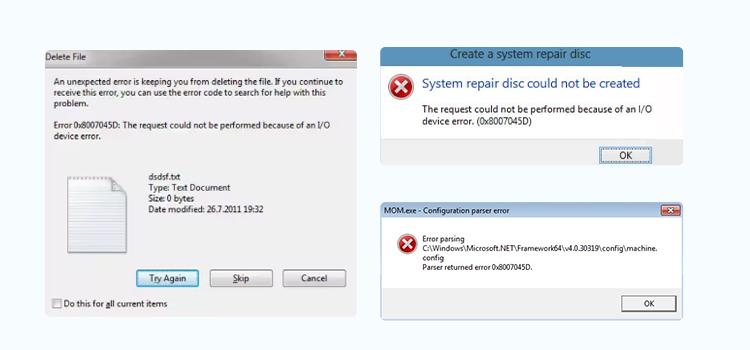
The Error Message
The request could not be performed because of an I/O device error. Error 0x8007045D. An unexpected error is keeping you from deleting the file.
Why It Appears
This error appears when reading from or writing to hard disks, USB drives, or other storage devices. Communication failure between your storage device and system is the root cause. Bad sectors make physical locations unreadable, forcing the controller to retry operations until the timeout. Loose or faulty data cables create intermittent connections. Underlying hardware issues, like failing controller chips, prevent proper I/O operations.
What Stellar Can Do
I/O device errors usually mean failing hardware or severe bad sectors. Stellar’s in-lab recovery team creates sector-by-sector images using specialized tools that do not stress failing media further. From these images, our engineers extract and reconstruct data safely. We use proprietary hardware to maintain stable communication with unstable drives during the recovery process.
You can read more about this issue and how to overcome it in our blog on “How to Fix HDD Error 0x8007045D“
15. Error Code 0x800701e3
The Error Message
The request failed due to a fatal device hardware error. Error 0x800701e3.
Why It Appears
This error appears during file transfers to external drives, backups, or USB operations. It indicates unstable USB bridges, failing sectors on external drives, or power delivery issues. The error typically shows up when the drive disconnects mid-transfer or cannot maintain stable communication with your system.
What Stellar Can Do
Fatal device hardware errors usually point to failing external drives or unstable connections. Stellar’s in-lab team uses specialized imaging hardware that bypasses USB bridges and connects directly to the drive’s controller, recovering data even when standard connections fail. For drives that disconnect randomly, we perform sector-by-sector imaging in a controlled environment.
For a complete guide on identifying and fixing this error, check our detailed article on “Fix Error 0x800701e3 on WD External Hard Drive in Windows 11“
16. SMART Hard Disk Error 301
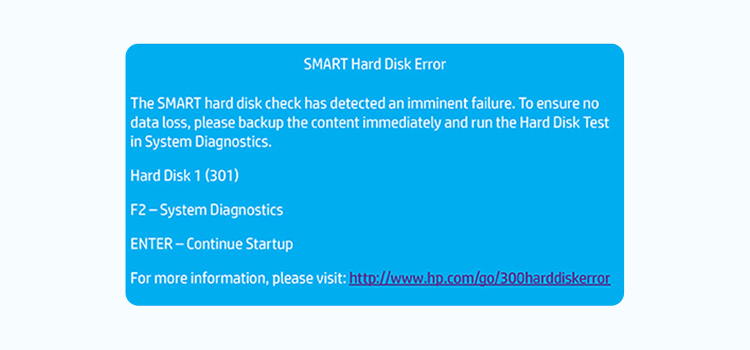
The Error Message
SMART status indicates a drive failure is imminent. Hard Disk 1 (301).
Why It Appears
This warning appears during system startup, particularly on HP laptops. S.M.A.R.T. tracks physical health parameters. When critical metrics like reallocated sector count or spin-up time exceed safe thresholds, your system throws this error. It means your drive has developed too many bad sectors or is showing mechanical signs of an imminent crash.
What Stellar Can Do
Damage is already done or imminent. Stellar’s data recovery labs intervene immediately using non-invasive lab techniques. Our experts retrieve data directly from platters or heads without further damaging media. We perform sector-by-sector imaging that skips bad areas and extracts files before hardware collapses completely.
To learn more about this error and its solution, visit our detailed blog on “How to Fix SMART Hard Disk Error Code 301 in HP Laptop“
17. SMART Hard Disk Error 303
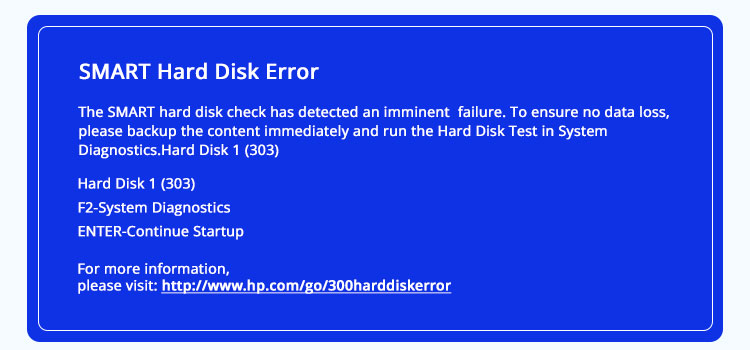
The Error Message
Hard Disk Quick (303). SMART Hard Disk Error 303. Short DST Failed Error 303.
Why It Appears
This message appears during PC startup diagnostic tests. Your drive failed a quick SMART test usually due to read/write errors or mechanical damage. Surface defects on platters create unreadable areas. This is an early indicator that drive health is rapidly declining.
What Stellar Can Do
Serious disk health issues like surface damage or failing read/write heads are likely. Stellar’s lab specialists image the drive first, then work directly on internals to extract data without stressing hardware. The safest option remains in-lab recovery where we control every aspect of the process to prevent permanent data loss.
For complete details and fix steps, read our in-depth blog on “How to Fix SMART Hard Disk Error 303“
18. Cyclic Redundancy Check (CRC) Error
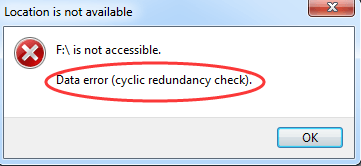
The Error Message
Data error (cyclic redundancy check). Disk check could not be completed due to a CRC error.
Why It Appears
Your system fails to read or transfer data correctly. CRC errors appear when copying files, accessing older data, or installing software from damaged disks. It means your drive could not confirm data integrity. Bad sectors make physical locations unreadable. Physical damage to drive surfaces creates unrecoverable areas.
What Stellar Can Do
CRC errors indicate drives cannot verify file integrity due to bad sectors or failing hardware. Stellar’s lab recovery services use sector-level imaging tools bypassing CRC validation entirely. We enable raw recovery of files from degraded platters.
You can find more information and solutions for this error in our blog on “How to Fix Cyclic Redundancy Check Error (CRC Error) in Windows“
19. You Need to Format the Disk
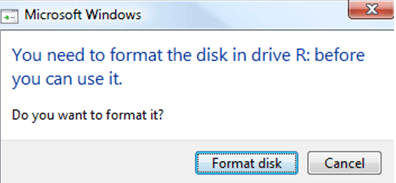
The Error Message
You need to format the disk before you can use it. The disk is not formatted.
Why It Appears
This sudden pop-up appears when drives are detected, but Windows cannot read them. Plugging in external hard drives or USB sticks that have become unreadable triggers this. File systems turn RAW due to improper ejection or storage corruption. Your drive’s file system is either corrupted or missing entirely.
What Stellar Can Do
This is typical of a RAW partition (your drives have turned RAW, or file systems have become severely corrupted). Before you attempt a format, Stellar’s in-lab team safely clones disks and reconstructs data from underlying sectors without causing further damage. We reconstruct partition tables by analyzing file signatures across the disk.
To know the causes and fixes for this issue, go through our detailed article on “Fixed: You Need to Format the Disk in Drive Before Using It Error“
20. Drive Is Not Accessible, Access Denied
The Error Message
Drive is not accessible, access denied. You do not currently have permission to access this folder.
Why It Appears
Drives appear in File Explorer, but Windows throws Access Denied errors when you try opening them. Broken NTFS permissions block access after system changes. Account mismatches happen when moving drives between systems. Encryption policies tied to different user profiles prevent access.
What Stellar Can Do
Stellar bypasses OS-level restrictions and recovers your files, including documents, photos, videos, all without needing access permissions. For encrypted drives, we safely recover protected data when you provide valid credentials. Secure in-lab intervention is the best approach to recover your data without risk of further lockout.
For a step-by-step explanation and recovery tips, check our comprehensive blog on “How to Fix the Drive Is Not Accessible Access Is Denied Error“
Chapter 4: Windows Update and System Services
21. Error Code 0x80070570
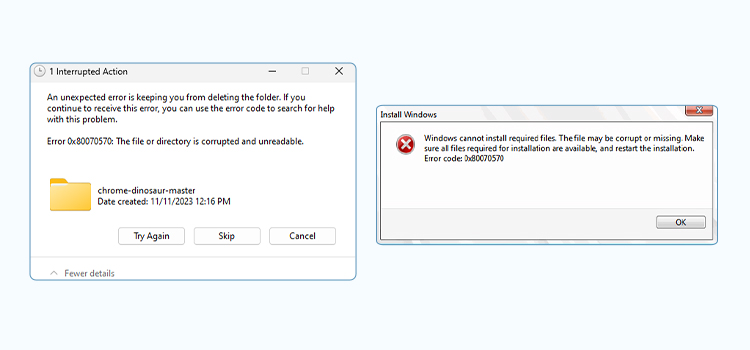
The Error Message
The file or directory is corrupted and unreadable. Windows cannot install required files. Error 0x80070570. An unexpected error is keeping you from deleting the file.
Why It Appears
Your drive encounters problems during file operations like copying, moving, or deleting. External drives show this error frequently due to unstable USB connections. System folders throw this error when Windows updates try writing to corrupted areas. File system corruption damages directory entries that track where files live on disk. Bad sectors make physical locations on the drive unreadable.
What Stellar Can Do
This error mostly points to bad sectors or hardware-level degradation. Stellar’s in-lab experts work in controlled lab environments cloning failing drives sector-by-sector. We safely extract data without causing further damage to the original media. We reconstruct damaged directory structures to retrieve files that Windows reports as unreadable or corrupted.
If you’d like a deeper understanding of this error and step-by-step solutions, read our detailed guide on “How to Fix Error 0x80070570 and Recover Data”
22. Error Code 0x80070057
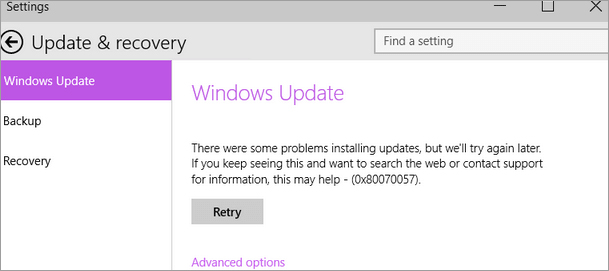
The Error Message
Invalid parameter. The parameter is incorrect. Windows could not find backup devices on this computer. Windows could not format a partition on disk 0.
Why It Appears
This error appears when backing up Windows or formatting disk partitions via Disk Management. The system received an invalid or improperly formatted argument for a command. File system corruption damages metadata that describes partition boundaries. Incorrect or damaged registry entries point to wrong disk parameters. Mismatched data size parameters happen when transferring files to volumes with incompatible allocation units.
What Stellar Can Do
File system corruption or damaged partitions cause this error. Engineers at Stellar specialize in rebuilding corrupted file systems by reconstructing partition tables and directory structures. We recover maximum possible data even from severely damaged volumes. When disks are still accessible but throwing parameter errors, we perform raw recovery to salvage files before the drive deteriorates further.
To explore the causes behind this error and learn how to fix it properly, check out our complete blog on “How to Fix Windows Update Error Code 0x80070057“
23. Error Code 0x8007042c
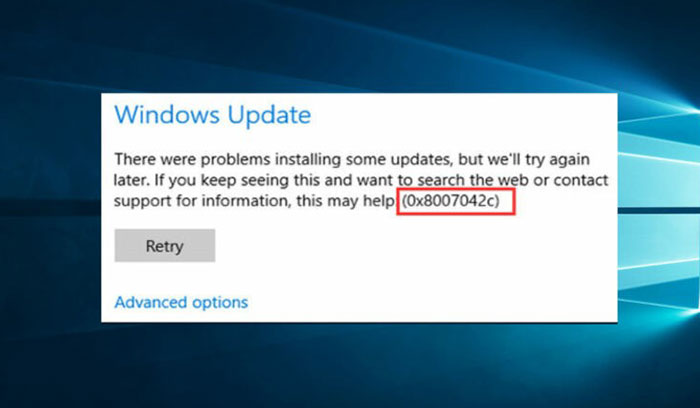
The Error Message
Windows Defender error 0x8007042c. The service cannot be started.
Why It Appears
This error appears when Windows Defender or Windows Update services fail to start. It is typically caused by corrupted service registrations, conflicts with third-party security software, or damaged system files that prevent security components from initializing. Malware infections can also disable these services to avoid detection.
What Stellar Can Do
When system services become corrupt, the safest path forward is in-lab recovery, especially if you suspect malware has compromised core Windows components. Stellar’s technicians can image your drive in a controlled environment, scan for malware without risking further infection, and recover your clean data before any repair attempts.
For a full breakdown of this issue and proven troubleshooting methods, visit our in-depth article on “How to Fix Windows 10 Error 0x8007042c”
24. Error Code 0x8000ffff
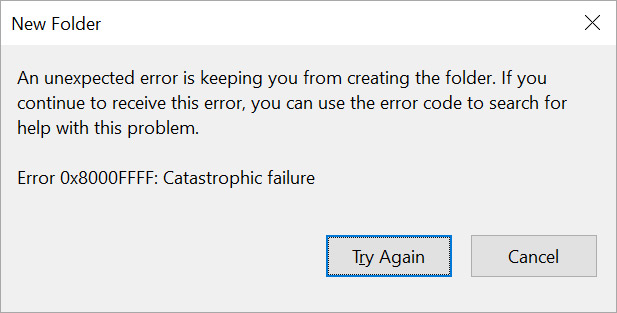
The Error Message
Catastrophic failure. Error code: 0x8000ffff. An unexpected error has occurred.
Why It Appears
This is a catch-all error that appears during Windows updates, app installations, or system restores. It points to severe corruption in the Windows Component Store, damaged update cache, or registry inconsistencies. Failed driver installations and interrupted system updates commonly trigger this error.
What Stellar Can Do
Catastrophic failure errors often require component store repair, but if your drive is unstable, in-lab recovery is essential. Stellar’s recovery service can image your drive, extract all user data, and isolate the corrupted components without risking further damage. Our engineers use purpose-built tools to bypass OS-level corruption and recover your files.
Want a detailed explanation and practical fixes? Don’t miss our comprehensive blog post on “How To Fix Error Code 0x8000ffff”
Chapter 5: File, App and Media Corruption
25. Bad Image Error 0xc0000020
The Error Message
Bad Image. [Application] is either not designed to run on Windows or it contains an error. Error status 0xc0000020.
Why It Appears
This error appears when Windows tries to load a corrupted or incompatible DLL file. It happens after incomplete updates, virus infections that damage system libraries, or failed software installations. The error prevents apps from launching because they cannot load required dependencies.
What Stellar Can Do
When DLL corruption prevents apps from running, Stellar’s in-lab team can recover your data by accessing the drive externally and bypassing the corrupted OS environment. Our experts extract your documents, photos, and application data before attempting any system repairs.
If this error is troubling you, we’ve covered everything you need to know in our detailed guide on “How to Fix Bad Image, error status 0xc0000020 Error”
26. Error Code 0xc00d36c4
The Error Message
Cannot play. Item was encoded in a format that is not supported. 0xc00d36c4.
Why It Appears
This appears in Windows Media Player when video codecs are missing, corrupted, or incompatible. File header corruption damages essential playback metadata. Incomplete downloads create truncated files. Codec conflicts arise after Windows updates.
What Stellar Can Do
When video files refuse to play due to codec or corruption issues, Stellar’s in-lab team analyses file structures and repairs corrupted headers, metadata, or frame data. We recover footage even when files appear completely unplayable.
To understand why this error occurs and how to resolve it safely, read our expert guide on “Methods to Fix Error Code 0xc00d36c4 in Videos”
27. Error Code 102630 / 0xc10100bf
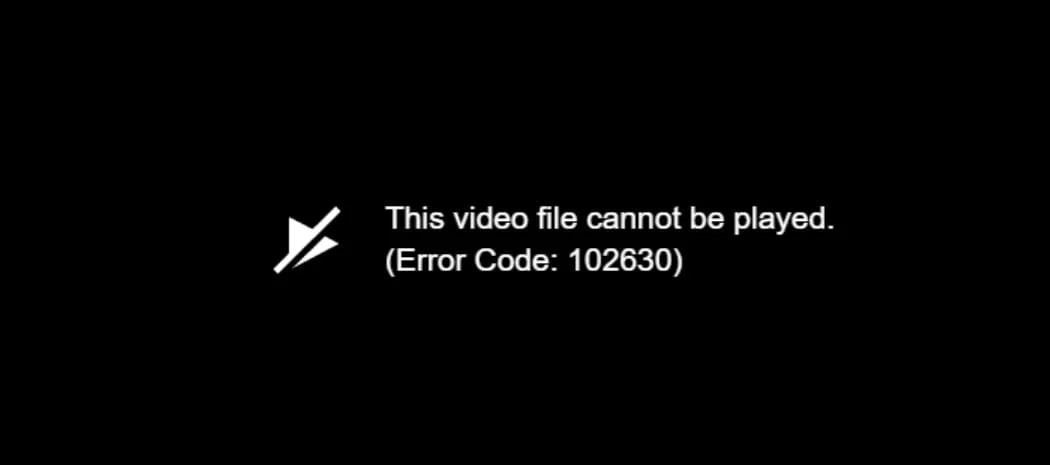
The Error Message
This video file cannot be played. Error code: 102630. Can’t play this file. Error code: 0xc10100bf.
Why It Appears
This error appears in web browsers or media players when the video stream is corrupted, the file format is unsupported, or there is a codec mismatch. It commonly affects Flash-based videos, corrupt MP4 files, or streams that were interrupted during download. Browser cache corruption or outdated graphics drivers can also trigger this error.
What Stellar Can Do
Stellar’s video repair specialists can analyse the container format and codec structure to rebuild corrupted video files. For files damaged during download or transfer, we extract intact frames and reconstruct the video timeline. Our in-lab service handles complex corruption scenarios.
Looking for a step-by-step solution? Head over to our complete troubleshooting blog on “How to Fix Error Code 102630“
28. PNG File Not Opening
The Error Message
Windows Photo Viewer cannot open this picture. The file appears to be damaged, corrupted, or is too large.
Why It Appears
PNG files refuse to open when file headers are corrupted. Invalid colour profiles prevent proper rendering. Incompletely transferred files lack essential data chunks. Interrupted downloads create partial files. Unsafe ejection of storage media corrupts actively written files.
What Stellar Can Do
Stellar’s photo recovery specialists repair corrupted PNG files by rebuilding file headers, fixing colour profiles, and extracting intact image data. For files damaged by storage errors, we analyze underlying sectors and recover original image data.
For technical insights and easy-to-follow fixes, check our detailed resource on “Methods to Fix PNG File Not Opening In Windows 10 Error”
29. Excel Not Responding
The Error Message
Microsoft Excel is not responding. The program may respond again if you wait.
Why It Appears
Excel freezes when working with large files. Corrupted workbooks contain damaged cell data or formulas. Add-ins conflict with Excel processes. File corruption happens due to abrupt shutdowns. Storage errors damage file structures during read operations.
What Stellar Can Do
When Excel files become corrupted or unresponsive, Stellar’s lab specialists reconstruct workbook structures, recover formulas, charts, and cell data. We handle severely corrupted XLSX and XLS files Excel cannot open.
Learn the root causes and the most effective fixes in our in-depth blog article on “How to Fix Excel Not Responding Error”
30. Corrupt H.265/HEVC Video File
The Error Message
Cannot play video. The file is corrupted or the format is not supported.
Why It Appears
H.265/HEVC videos become corrupted due to incomplete encoding. Transfer errors interrupt file writes. Storage failures damage existing files. These files are especially sensitive to corruption because they use complex compression algorithms.
What Stellar Can Do
Stellar’s video repair experts specialize in H.265/HEVC corruption because codec structures are more complex than older formats. Our in-lab team analyses NAL units, slice structures, and GOP sequences to rebuild corrupted HEVC files.
To avoid further data loss and fix this error correctly, read our expert guide on “Guide to Fix a Corrupt H.265/ HEVC Video File“
How Stellar Can Help
Stellar offers two recovery paths depending on your situation: Use our software when drives are stable and issues are logical. Or, use our in-lab service when your drives are not detected, make clicking sounds, disconnect randomly, or show hardware faults.
At Stellar, we emphasize strict confidentiality controls. Your data remains secure throughout the recovery process.
For India readers
Stellar has dedicated data recovery centers across India, with secure labs for complex cases. Whether you need data recovery in Mumbai, Delhi, Bangalore, or any other city, contact Stellar’s data recovery service for professional support.
FAQs
1. Can I fix Windows errors myself or should I contact a professional?
You can attempt built-in fixes like Startup Repair, System Restore, or CHKDSK if your drive is stable and detected. But if your drive clicks, is not recognised in BIOS, or shows SMART warnings, stop immediately and contact Stellar’s professional data recovery service. DIY attempts on failing hardware can permanently damage your data.
2. What is the difference between logical and physical errors?
Logical errors affect the file system, boot records, or OS files but the drive hardware is intact. Physical errors involve mechanical damage, failing read/write heads, or bad sectors. Logical errors can sometimes be repaired with software, but physical errors require in-lab intervention with specialized tools.
3. Will formatting my drive fix the error?
Formatting erases your data and rebuilds the file system, which might resolve some logical errors. But if the error is caused by bad sectors or hardware failure, formatting will not help and will destroy your data. Always attempt data recovery before formatting.
4. How do I know if my drive is failing?
Warning signs include clicking or grinding noises, SMART failure warnings, frequent disconnections, files becoming corrupt repeatedly, and slow read speeds. If you notice any of these, back up immediately if possible and contact Stellar’s recovery service.
5. Can deleted files be recovered after a Windows error?
Yes. Stellar Data Recovery software can recover deleted files from formatted partitions, corrupted drives, and RAW file systems. For drives with hardware damage, our in-lab service can extract deleted files using sector-level imaging techniques.
6. What should I do if my drive is not detected at all?
Do not attempt repeated restarts or cable swaps if the drive clicks or shows no signs of life. Contact Stellar’s data recovery service immediately. Our lab specialists can diagnose controller failures, firmware corruption, or mechanical damage and recover your data without risking further harm.
7. How long does data recovery take?
Software recovery can take a few hours, depending on drive size and corruption level. In-lab recovery timelines vary based on the severity of damage, typically ranging from 3 to 7 days for standard cases to longer for complex lab recoveries. Stellar provides clear time estimates upfront.
About The Author

Urvika Tuteja is an SEO Executive at Stellar® with a good understanding of online marketing. She is known for her quick and enthusiastic learning abilities. Urvika contributes her skills to managing operational activities and driving the growth of organic traffic.